Can I copy Design Options from one element to another in WPBakery?
Starting with WPBakery 9.1, you can use the Copy Design Options feature to copy styling settings from one element and apply them to another. This helps you maintain consistent spacing, borders, backgrounds, colors, and other design settings without entering the same values repeatedly.
How to copy and paste Design Options
- Open the element you want to copy the styling from.
- Go to the Design Options tab.
- Open the menu (≡) at the top and select Copy.
- Open the element where you want to apply the styling.
- Go to its Design Options tab, open the same menu, and select Paste.
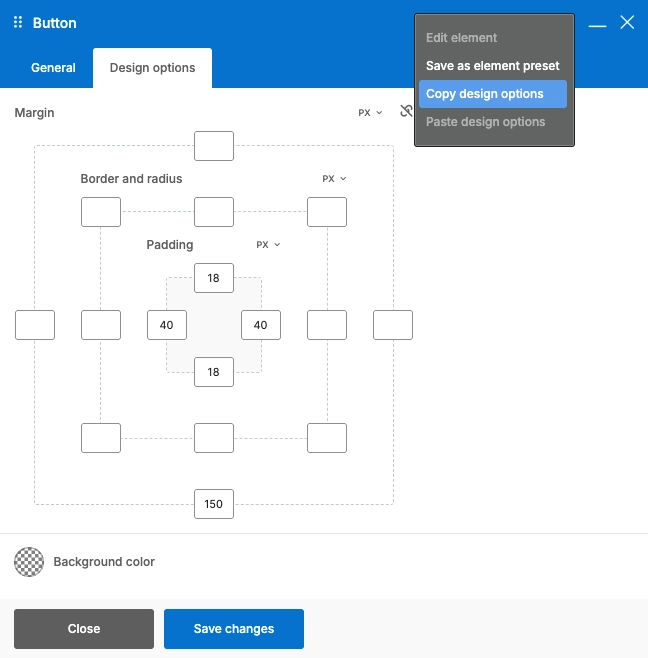
The copied settings will be applied to the selected element.
You can also copy and paste Design Options between different pages, making it easier to reuse existing styles across your website.
What settings can I copy?
The feature copies supported values from the Design Options tab, including spacing, borders, backgrounds, colors, and other available styling settings.
It only copies Design Options settings, not all attributes or content of the element.
Can I copy element params added by third-party developers?
Custom attributes added to Design Options by third-party themes or plugins are not copied automatically.
Developers can add support for their custom attributes using a dedicated hook. For instructions, see How to add copy/paste to a third-party element in the WPBakery Developer Knowledge Base.