WPBakery MCP
WPBakery MCP is an official WPBakery feature that connects your WPBakery-powered WordPress website to compatible AI clients and assistant tools, including ChatGPT, Claude, and Cursor. It uses the Model Context Protocol (MCP) to let those clients create and edit content, adjust layouts and design settings, and generate custom WPBakery elements through your instructions.
WPBakery MCP is available through the separate WPBakery AI plugin. It requires an active Support Plus subscription associated with the WPBakery license activated on your website.
Supported AI clients
- ChatGPT
- Claude, web and desktop
- Claude Code
- Codex
- Cursor
- GitHub Copilot for VS Code
- GitHub Copilot CLI
- GitHub Copilot for JetBrains
- Gemini CLI
- Google Antigravity
- n8n
- Open WebUI
- Grok
Connection steps may vary by client. Follow the instructions provided in the plugin for your chosen client.
How to set up WPBakery MCP
- Sign in to the WPBakery Support Portal and download the WPBakery AI plugin.
- In WordPress, go to Plugins > Add New > Upload Plugin. Upload the ZIP file, install it, and activate the plugin.
- Confirm that the website's WPBakery Page Builder license is activated and has an active Support Plus subscription.
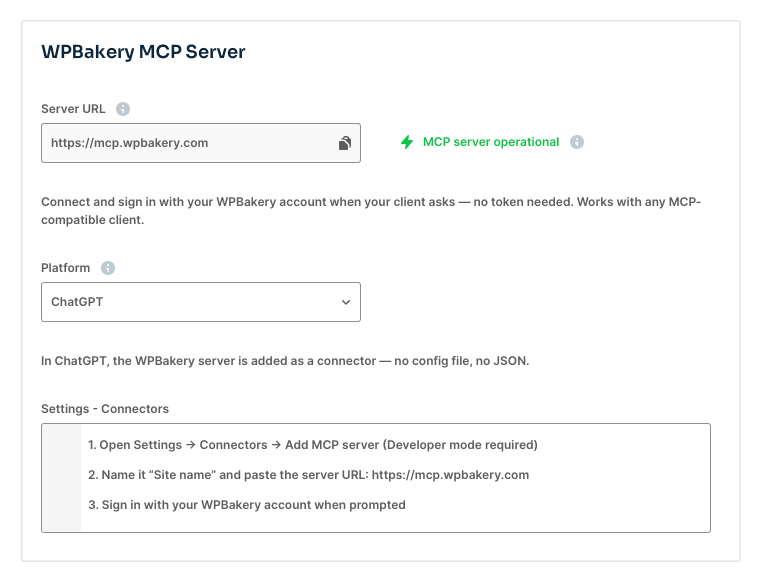
- Open WPBakery Page Builder > WPBakery AI > MCP and select your AI client.
- Follow the client-specific connection instructions. For the hosted connection, use
https://mcp.wpbakery.comas the MCP server address. - When prompted, sign in to the Support Portal account that holds the subscription. Select the subscription and choose the connection's access level.
- Approve the connection and complete any remaining steps in your AI client.
Once connected, give your AI client instructions describing what you want to create or change.
What you can do with WPBakery MCP installed
Depending on the connection's access level and WordPress user permissions, you can:
- Edit text, images, buttons, and other WPBakery content.
- Create pages, posts, and supported custom post types.
- Add, remove, and rearrange elements.
- Adjust Design Options and responsive settings.
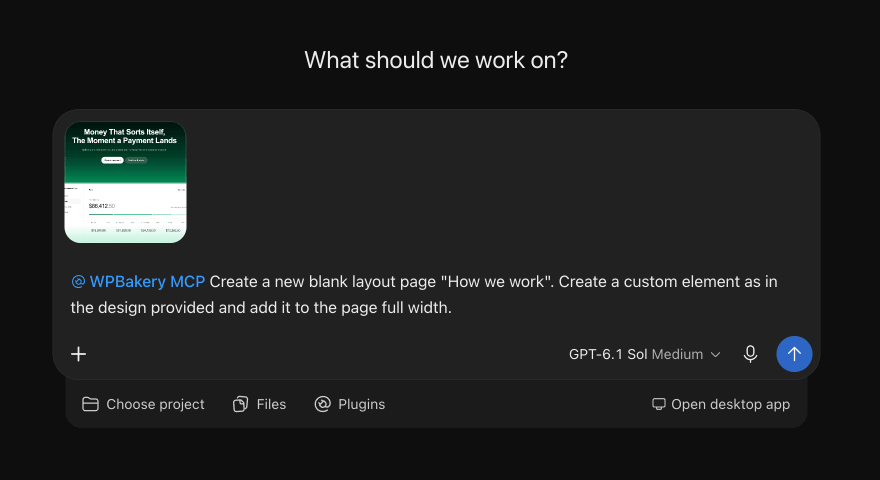
- Build layouts from written descriptions or reference images supported by your AI client.
- Add or modify custom HTML, CSS, and JavaScript where permitted.
- Generate custom WPBakery elements.
WPBakery MCP is designed to prioritize elements already available on your website, including WPBakery's default elements and elements supplied by your theme, add-ons, or existing custom code.
Generated custom elements
If existing elements cannot provide the requested functionality, a connection with Full access and sufficient WordPress permissions can generate a custom element. Generated elements appear in the plugin's Custom elements screen and the WPBakery Add Element window.
Important: Generated custom elements depend on the WPBakery AI plugin. If you deactivate or delete that plugin, those elements stop displaying on pages where they are used.
Example instructions
Create a new draft landing page for a photography business with a hero section, gallery, testimonials, and contact button. Use existing WPBakery elements and Design Options wherever possible.
Update the About page: replace the introduction with the text below, add a team section, and adjust the spacing for mobile devices. Keep the page as a draft for review.
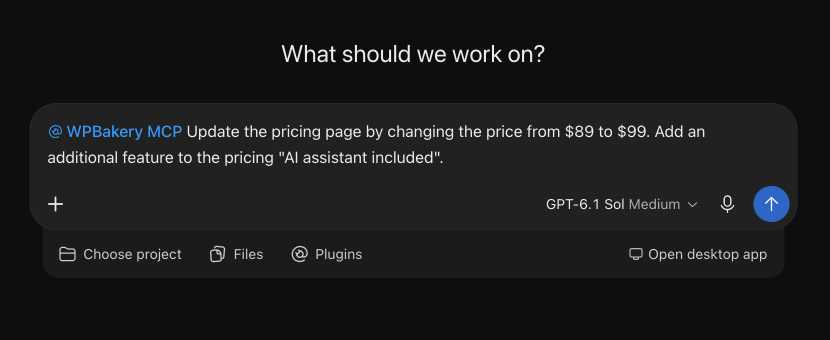
Identify the page, describe the expected result, and state whether the AI should use existing elements or generate a custom element. Review the result before publishing.
Manage connections
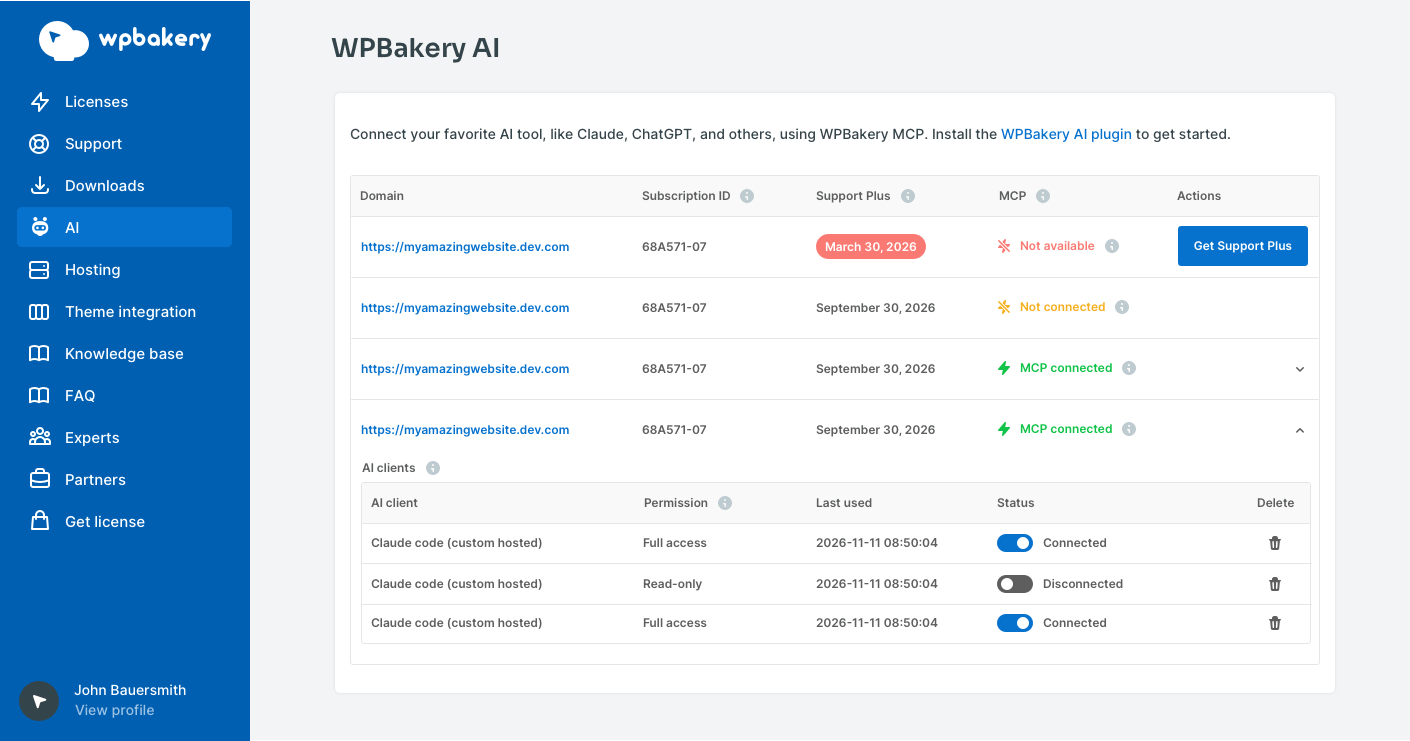
You can connect multiple AI clients to the same website. Each connection requires separate authorization. Use the WPBakery AI section of the Support Portal to review subscriptions, connected websites, and authorized AI clients, and to disconnect access.
The plugin's MCP screen also lets you review and manage clients connected to the current website.
Connecting a customer's AI client
If the license and Support Plus subscription belong to your account, you need to assist your customer with authorization. Sign in to your Support Portal account and approve the connection yourself. Do not share your account credentials with the customer.
Review activity
The plugin's activity screen records MCP tool calls made on your website. You can review the action, the affected object where applicable, and whether the call succeeded or returned an error.
Review generated custom elements separately in Custom elements.
Frequently asked questions
Is WPBakery MCP the same as the built-in AI Assistant features?
No. WPBakery MCP connects an external AI client to your website so it can perform supported editing actions. It requires the separate WPBakery AI plugin and its own authorized connection.
Can I edit AI-created content in WPBakery?
Yes. Content created with WPBakery elements remains editable in WPBakery. Generated custom elements also appear in the Add Element window while the WPBakery AI plugin is active.
Why can't my AI client generate a custom element?
Custom element generation requires Full access and sufficient permissions for the WordPress user the connection acts as. Check both the connection's access level and its assigned user.
What happens if Support Plus expires?
WPBakery MCP access stops. Connected AI clients can no longer interact with the website through WPBakery MCP.
Can WPBakery MCP manage everything in WordPress?
No. It supports specific actions, including creating pages and posts, but the initial version does not integrate with the WordPress Capabilities API. Do not assume it can perform every WordPress administration task.